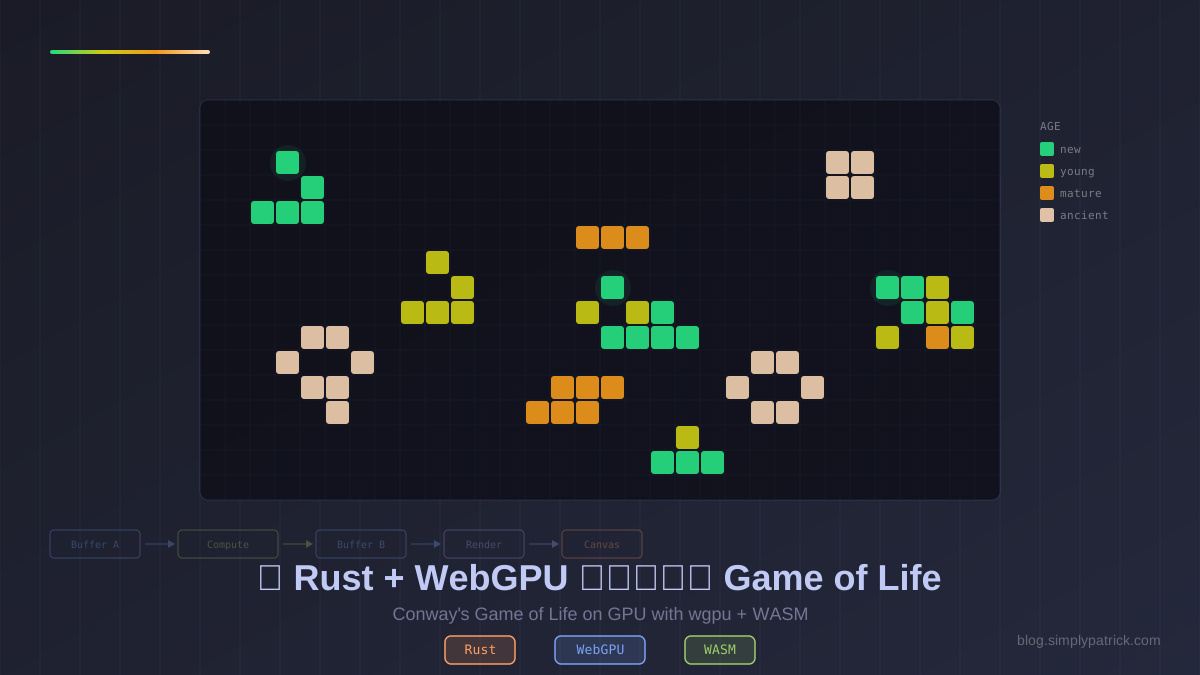
這次來點有趣的:把 Conway’s Game of Life 直接丟到 GPU 上面跑——用 Rust 的 wgpu 寫 WebGPU compute shader,編譯成 WASM 在瀏覽器裡執行。128x128 的網格、上萬個細胞的模擬,全部在 GPU 上平行算完。聽起來頗炫,其實沒你想的那麼難喔。
專案原始碼:wgpu-game-of-life
先玩再說
操作方式:Play/Pause 開始模擬,點擊畫布可以畫細胞,Speed 調整速度。需要 WebGPU 支援的瀏覽器(Chrome 113+、Edge 113+、Firefox 141+)。
顏色代表細胞年齡:綠色是新生的,黃色是年輕的,橘色是成熟的,白色是古老的 still life 結構。
為什麼做這個?
寫完 WASM Markdown 編輯器之後,我就一直想再往 WASM 深一點挖。Markdown 編輯器純粹是 CPU 計算,不過現代瀏覽器其實已經支援 WebGPU 了——也就是說,你可以直接在瀏覽器裡摸到 GPU 的算力,這實在是很誘人。
而 Game of Life 拿來當入門題目,我想再適合不過了:
- 天然適合平行計算:每個細胞的下一代只取決於鄰居,可以完全並行
- 需要 compute shader + render pipeline:同時學兩種 GPU 程式設計模式
- 視覺回饋即時:寫完馬上看到結果
- 規模剛好:不會太大,但足以理解 GPU 程式設計的核心概念
技術架構
整體流程
核心是 ping-pong 雙緩衝:兩個 storage buffer 輪流讀寫。每跑一步模擬,compute shader 就從其中一個 buffer 讀當前狀態,把下一代算出來寫進另一個 buffer,然後兩邊對調。Render pipeline 則負責把結果畫到畫面上,分工很乾淨吧。
專案結構
wgpu-game-of-life/
├── Cargo.toml
├── src/
│   ├── lib.rs           # WASM 進入點,匯出 API
│   ├── gpu.rs           # wgpu 初始化、pipeline 建立、模擬邏輯
│   ├── compute.wgsl     # Compute shader(Game of Life 規則)
│   └── render.wgsl      # Vertex + Fragment shader(網格視覺化)
├── index.html
└── www/
    ├── index.js         # 控制邏輯、動畫迴圈、滑鼠互動
    └── styles.css
Rust 依賴項
[dependencies]
wgpu = "24"                        # WebGPU API
wasm-bindgen = "0.2"               # JS 互操作
wasm-bindgen-futures = "0.4"       # async 支援(wgpu 初始化是 async 的)
web-sys = { version = "0.3", features = ["Document", "Window", "Element", "HtmlCanvasElement", "console"] }
console_error_panic_hook = "0.1"
js-sys = "0.3"
bytemuck = { version = "1", features = ["derive"] }
跟 Markdown 編輯器比,這裡多了 wgpu(核心)、wasm-bindgen-futures(因為 GPU 初始化是非同步的)還有 bytemuck(安全地把 Rust 資料轉成 GPU buffer 要的位元組)。
Compute Shader:Game of Life 規則
這段大概是整個專案最核心的地方了——用 WGSL 寫的 compute shader:
@group(0) @binding(0) var<uniform> grid: vec2u;
@group(0) @binding(1) var<storage, read> cells_in: array<u32>;
@group(0) @binding(2) var<storage, read_write> cells_out: array<u32>;

@compute @workgroup_size(8, 8)
fn main(@builtin(global_invocation_id) id: vec3u) {
    if (id.x >= grid.x || id.y >= grid.y) { return; }

    // 數 8 個鄰居(環形邊界)
    var neighbors: u32 = 0u;
    for (var dy: i32 = -1; dy <= 1; dy++) {
        for (var dx: i32 = -1; dx <= 1; dx++) {
            if (dx == 0 && dy == 0) { continue; }
            let nx = u32((i32(id.x) + dx + i32(grid.x)) % i32(grid.x));
            let ny = u32((i32(id.y) + dy + i32(grid.y)) % i32(grid.y));
            neighbors += select(0u, 1u, cells_in[cell_index(nx, ny)] > 0u);
        }
    }

    let idx = cell_index(id.x, id.y);
    let age = cells_in[idx];

    // Conway's rules + 年齡追蹤
    if (neighbors == 3u && age == 0u) {
        cells_out[idx] = 1u;                    // 誕生
    } else if (age > 0u && (neighbors == 2u || neighbors == 3u)) {
        cells_out[idx] = min(age + 1u, 255u);   // 存活,年齡 +1
    } else {
        cells_out[idx] = 0u;                    // 死亡
    }
}
幾個重點:
@workgroup_size(8, 8):每個工作群組處理 8x8 = 64 個細胞,GPU 會自動分配到各個核心cells_in是唯讀,cells_out是可寫:避免讀寫衝突,這就是為什麼需要兩個 buffer- 環形邊界(toroidal wrapping):左邊超出會接到右邊,上面超出接到下面
- 年齡追蹤:不只是 0/1,而是記錄細胞存活了幾代(上限 255)
128x128 的網格需要 dispatch ceil(128/8) × ceil(128/8) = 16 × 16 = 256 個工作群組,每群 64 個執行緒,加起來就是 16,384 個 GPU 執行緒一起開工——這數字想想還挺爽的。
Render Shader:年齡上色
Fragment shader 根據年齡把細胞染成不同顏色:
fn age_color(age: u32) -> vec4f {
    if (age == 0u) {
        return vec4f(0.06, 0.06, 0.12, 1.0);  // 死亡:深色背景
    }
    let t = clamp(f32(age - 1u) / 50.0, 0.0, 1.0);

    // 顏色漸層:亮綠 → 黃綠 → 橘 → 暖白
    let c0 = vec3f(0.15, 0.90, 0.30);  // 新生
    let c1 = vec3f(0.80, 0.90, 0.15);  // 年輕
    let c2 = vec3f(0.95, 0.60, 0.10);  // 成熟
    let c3 = vec3f(1.00, 0.85, 0.70);  // 古老

    // 三段線性插值
    if (t < 0.33) { return mix(c0, c1, t / 0.33); }
    else if (t < 0.66) { return mix(c1, c2, (t - 0.33) / 0.33); }
    else { return mix(c2, c3, (t - 0.66) / 0.34); }
}
渲染的做法是畫一個全螢幕四邊形(6 個頂點、2 個三角形),fragment shader 再根據 UV 座標去查對應的細胞年齡。這比起為每個細胞各自生成幾何體(instanced rendering)省事多了,而且效能也夠用啦。
Rust 端:wgpu 初始化
wgpu 在 WASM 環境下的初始化,跟 native 其實長得差不多,差別只在 surface 是從 canvas 建出來的:
// 從 HTML canvas 建立 surface
let instance = wgpu::Instance::new(&wgpu::InstanceDescriptor {
    backends: wgpu::Backends::BROWSER_WEBGPU | wgpu::Backends::GL,
    ..Default::default()
});

let surface = instance
    .create_surface(wgpu::SurfaceTarget::Canvas(canvas))
    .expect("failed to create surface");

// 請求 adapter 和 device(非同步)
let adapter = instance.request_adapter(&wgpu::RequestAdapterOptions {
    compatible_surface: Some(&surface),
    ..Default::default()
}).await.expect("no adapter");

let (device, queue) = adapter.request_device(
    &wgpu::DeviceDescriptor {
        required_limits: wgpu::Limits::downlevel_webgl2_defaults()
            .using_resolution(adapter.limits()),
        ..Default::default()
    },
    None,
).await.expect("no device");
Backends::BROWSER_WEBGPU | Backends::GL 讓它在支援 WebGPU 的瀏覽器用 WebGPU,不支援的用 WebGL2 作為 fallback。
Ping-Pong 雙緩衝
我覺得最有意思的設計就是 bind group 怎麼建——為了搞定 ping-pong,我們直接建兩組 bind group:
let compute_bind_groups = [
    // Step 0: 讀 A,寫 B
    create_bind_group(&cell_buffers[0], &cell_buffers[1]),
    // Step 1: 讀 B,寫 A
    create_bind_group(&cell_buffers[1], &cell_buffers[0]),
];
之後每跑一步模擬,只要切換 step_index,讀寫方向就自動對調了,乾淨俐落。
WASM API 設計
Rust 端透過 thread_local! 儲存全域狀態,匯出簡單的函式給 JavaScript:
為什麼要用 thread_local! 呢?因為 #[wasm_bindgen] 匯出的必須是自由函式,JavaScript 在呼叫 step()、render() 時並不會帶著物件進來——所以 Simulation 只能存在模組層級的 static 裡。麻煩的是,一般的 static 會要求內容實作 Sync,偏偏 RefCell 不是 Sync;而且 Simulation 裡握著的那些 wgpu 資源(Device、Queue、Surface 之類的)也通通不是 Send/Sync。thread_local! 讓每個執行緒各自擁有一份副本,剛好繞過了 Sync 的限制——反正 WASM 環境裡本來就只有一個執行緒,所以說穿了,它其實就是一個不需要 Sync 的全域可變變數啦。
thread_local! {
    static SIMULATION: RefCell<Option<Simulation>> = RefCell::new(None);
}

#[wasm_bindgen]
pub async fn start(canvas_id: &str, grid_width: u32, grid_height: u32) {
    console_error_panic_hook::set_once();
    let sim = Simulation::new(canvas_id, grid_width, grid_height).await;
    SIMULATION.with(|s| *s.borrow_mut() = Some(sim));
}

#[wasm_bindgen]
pub fn step() {
    with_sim(|sim| sim.step());
}

#[wasm_bindgen]
pub fn toggle_cell(x: u32, y: u32) {
    with_sim(|sim| sim.toggle_cell(x, y));
}
start() 之所以是 async,是因為 wgpu 初始化那幾步(request_adapter、request_device)都是非同步操作;其餘的函式就單純是同步的了。
CPU 端的細胞鏡像
這裡有個實作上的小巧思:我們在 CPU 端另外留了一份細胞狀態的副本。
為什麼要這樣搞呢?因為當使用者點畫布想切換某個細胞時,從 GPU 把資料讀回來(readback)其實是很貴的操作。所以乾脆在 CPU 端養一份鏡像,toggle 時先改 CPU 這邊的資料,再上傳回 GPU:
pub fn toggle_cell(&mut self, x: u32, y: u32) {
    let idx = (y * self.grid_width + x) as usize;
    self.cells[idx] = if self.cells[idx] > 0 { 0 } else { 1 };
    self.queue.write_buffer(&self.cell_buffers[buf_idx], 0,
        bytemuck::cast_slice(&self.cells));
    self.render();
}
另外每次 step() 也會順手在 CPU 端跑一次模擬,讓鏡像跟 GPU 那邊保持同步。
建置與執行
cd wgpu-game-of-life
wasm-pack build --target web
python -m http.server 8080
# 開啟 http://localhost:8080
建置輸出:
- WASM 檔案:117 KB
- JS 膠水程式碼:57 KB
- 總計:~174 KB
居然比 Markdown 編輯器的 235 KB 還小,有點意外吧?主要是因為 wgpu 的 WASM backend 大部分邏輯都丟給瀏覽器原生的 WebGPU API 去做了。
學到的東西
WebGPU / wgpu 特定
- Compute shader 比想像中簡單:WGSL 語法跟 Rust 很像,workgroup/dispatch 那套概念也滿直覺的
- Bind group 是關鍵抽象:它定義了 shader 能碰到哪些資源,切一下 bind group 就能改變資料流向
- wgpu 的跨平台設計頗優秀:同一份 Rust 程式碼,換個 backend 就能在 native 和 WASM 上跑,真是省心
- GPU readback 很貴:別動不動就從 GPU 讀資料回來,用 CPU 鏡像是很常見的解法
跟 Markdown 編輯器的比較
| Markdown 編輯器 | Game of Life | |
|---|---|---|
| GPU 使用 | 無 | Compute + Render |
| 非同步初始化 | 否 | 是(wgpu 需要 async) |
| 主要瓶頸 | CPU 解析 | GPU shader 編譯 |
| 互動模式 | 文字輸入 | 滑鼠繪圖 + 動畫迴圈 |
| 套件大小 | 235 KB | 174 KB |
結語
這是我第一次寫 GPU shader 程式,老實說,用 Rust 配 wgpu 的體驗實在是好得出乎意料。wgpu 把 WebGPU 那些複雜的東西封裝得很乾淨,WGSL 這個 shader 語言的設計也相當現代,寫起來不卡手。
所以如果你也想入門 WebGPU,我會說 Game of Life 真的是個很棒的起點:概念簡單、視覺效果又漂亮,還剛好把 compute pipeline 跟 render pipeline 兩個核心概念都摸過一遍。要不要也來玩玩看呢…